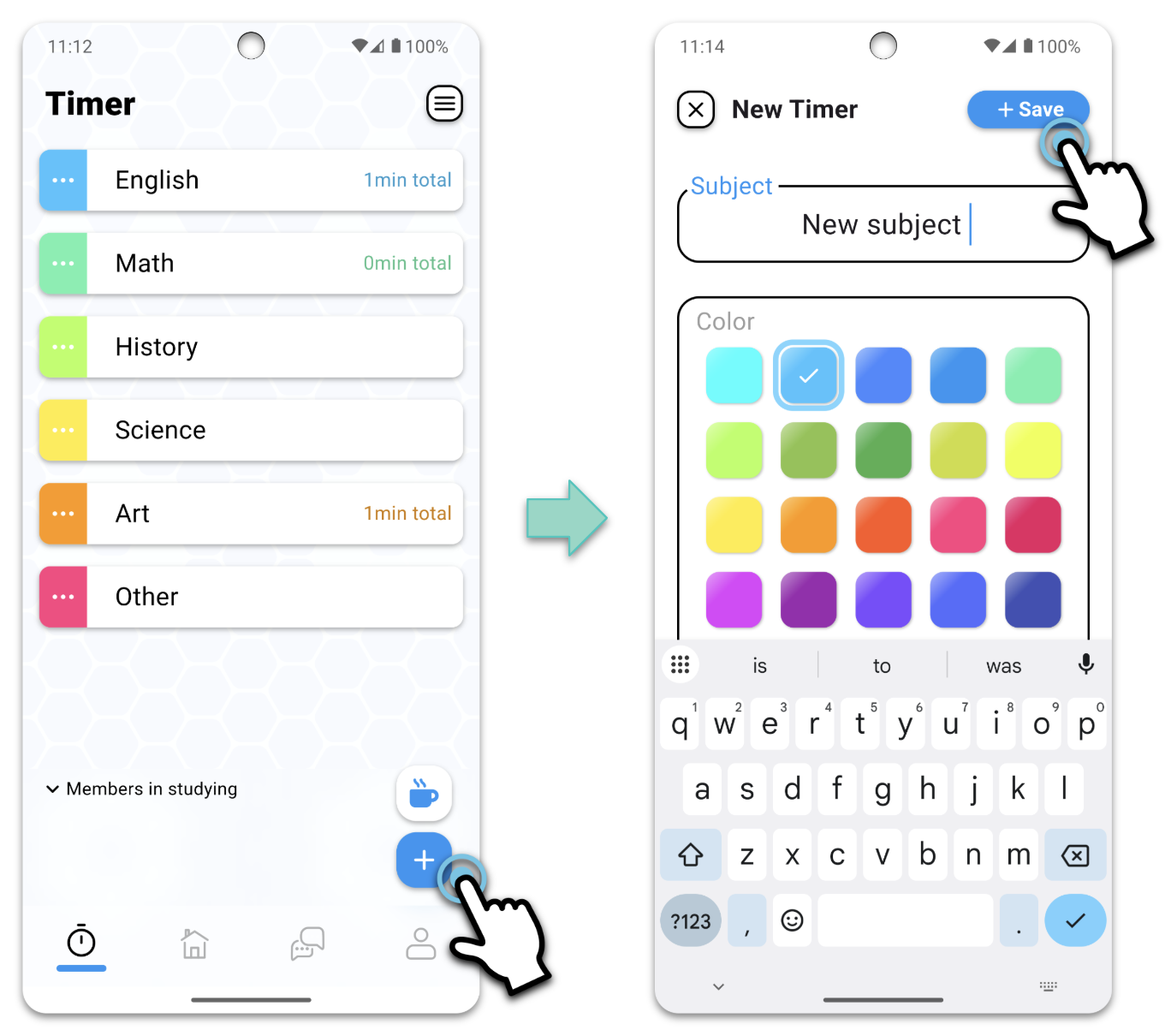
■ Adding a timer
You can add a timer for each subject or assignment you study.
- Tap the plus button at the bottom right of the timer screen
- Enter a subject name, select a color, and then click “Save.”
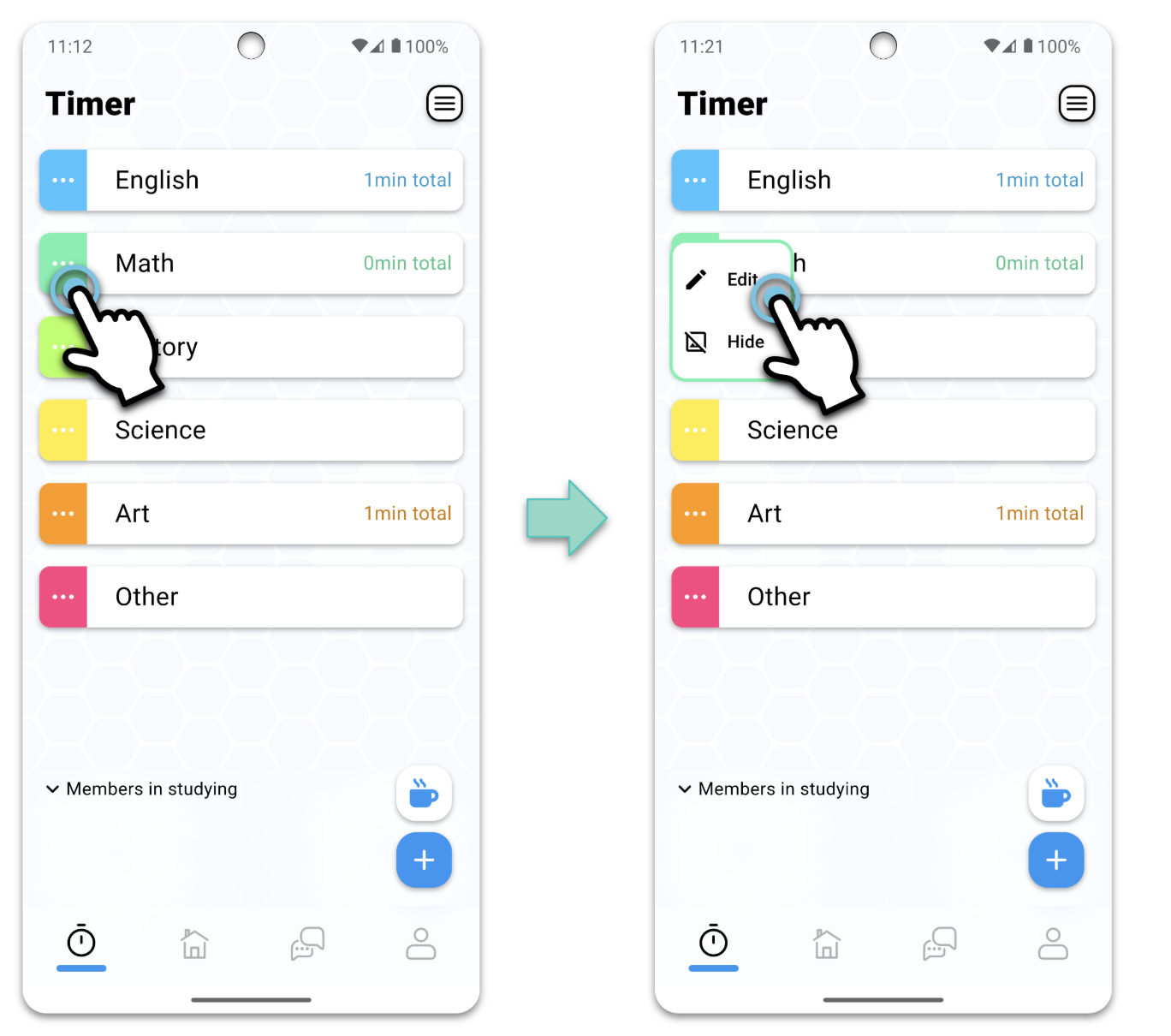
■ Editing timers
You can change the timer title and color.
- Tap the menu button of the timer you want to edit
- A menu will appear, then tap “Edit”
- After changing the title or color, tap “Save”
You can also hide unnecessary timers by selecting “Hide” from the menu.
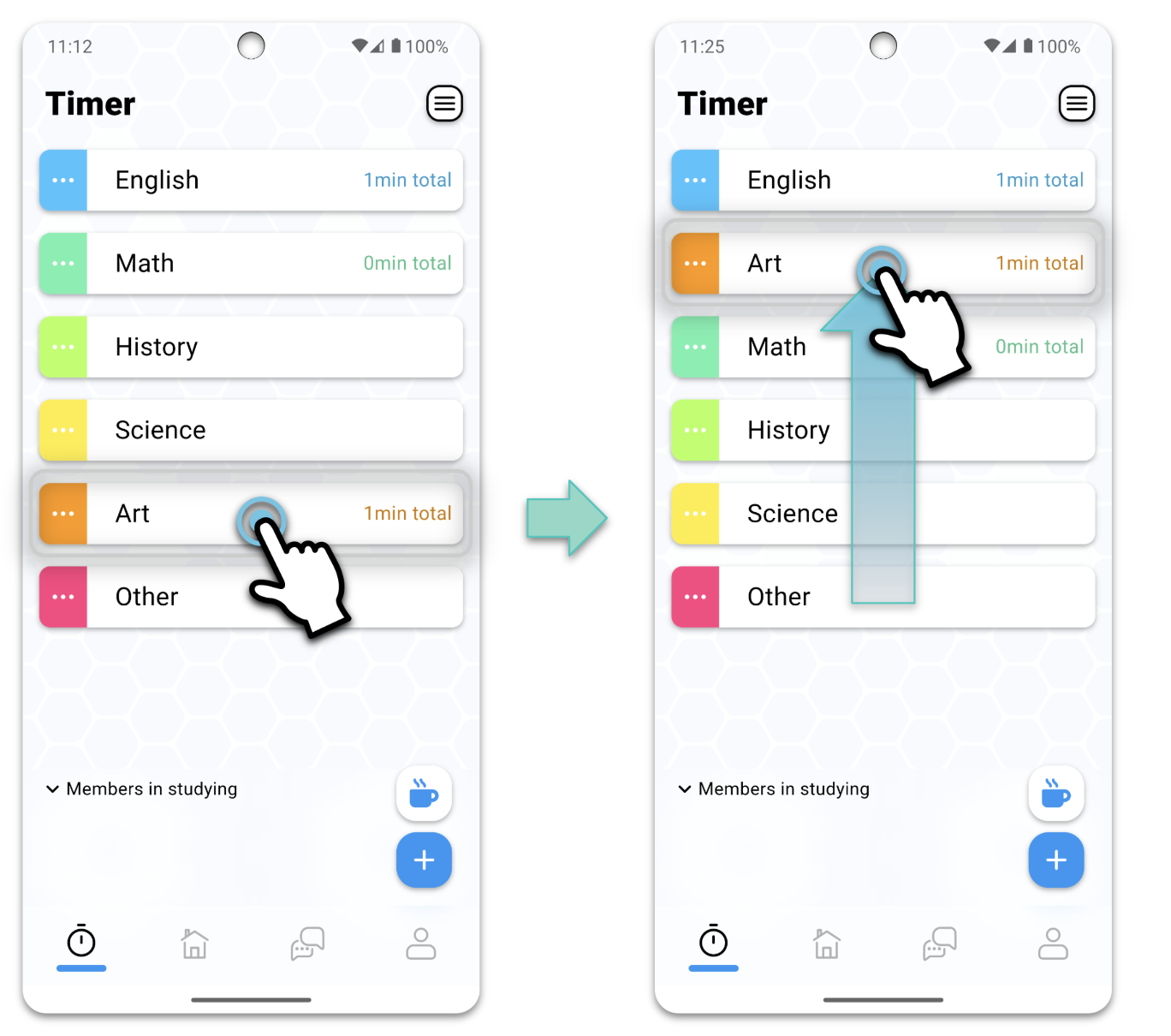
■ Reordering timers
You can rearrange the timers in any order you like.
- Tap and hold the timer you want to move
- Hold and drag the timer to move its location
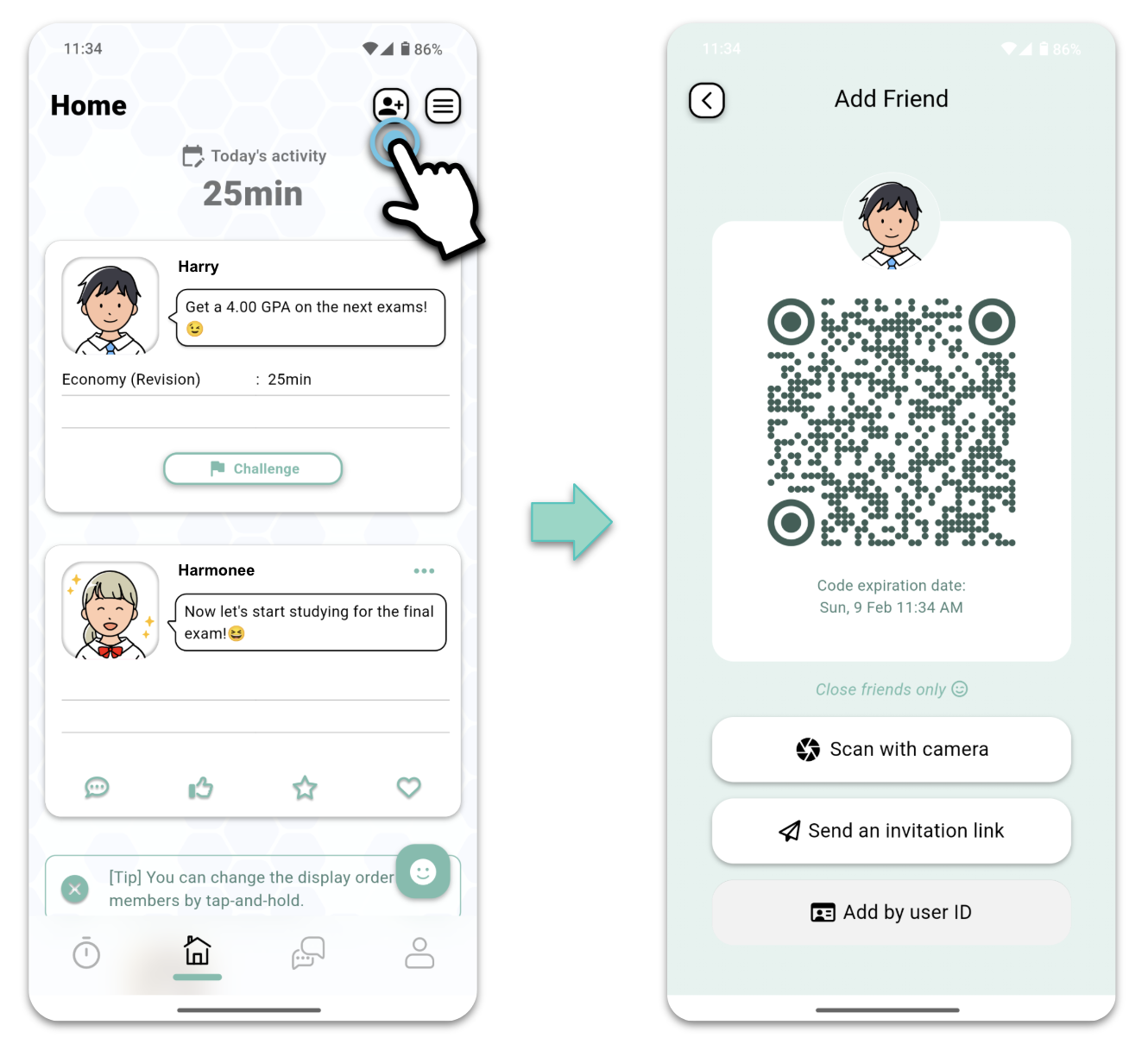
■ Add friends
You can add friends to the app and share your study progress with them.
- Open Home screen or Message screen and tap the Add Friend button in the top right
- You can connect by scanning your friend’s code with your camera or by having your friend open your invitation link.
■ Viewing friends
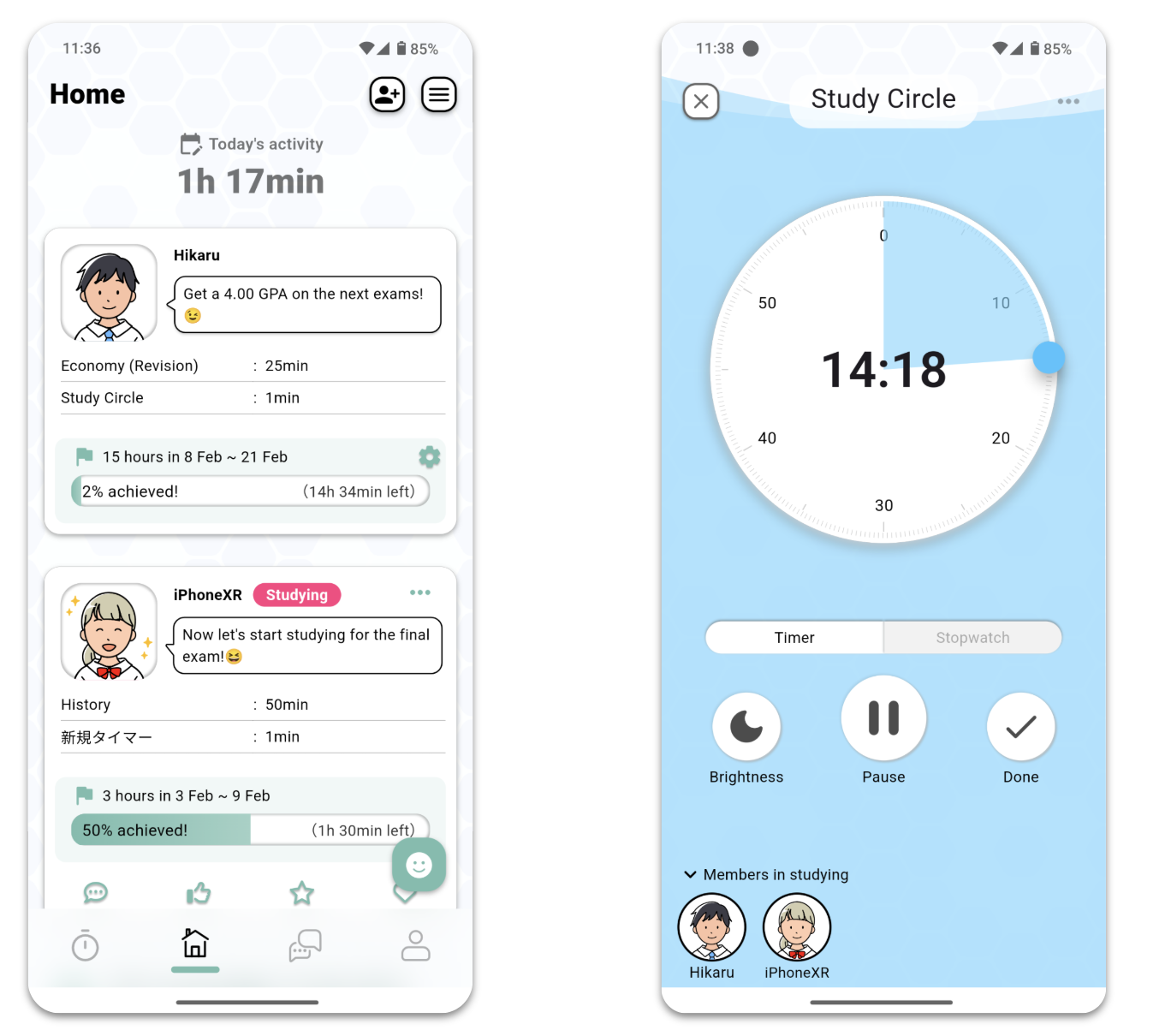
You can see your friends’ information on Home screen. Timer screen also shows the friends who are currently studying.
■ My page
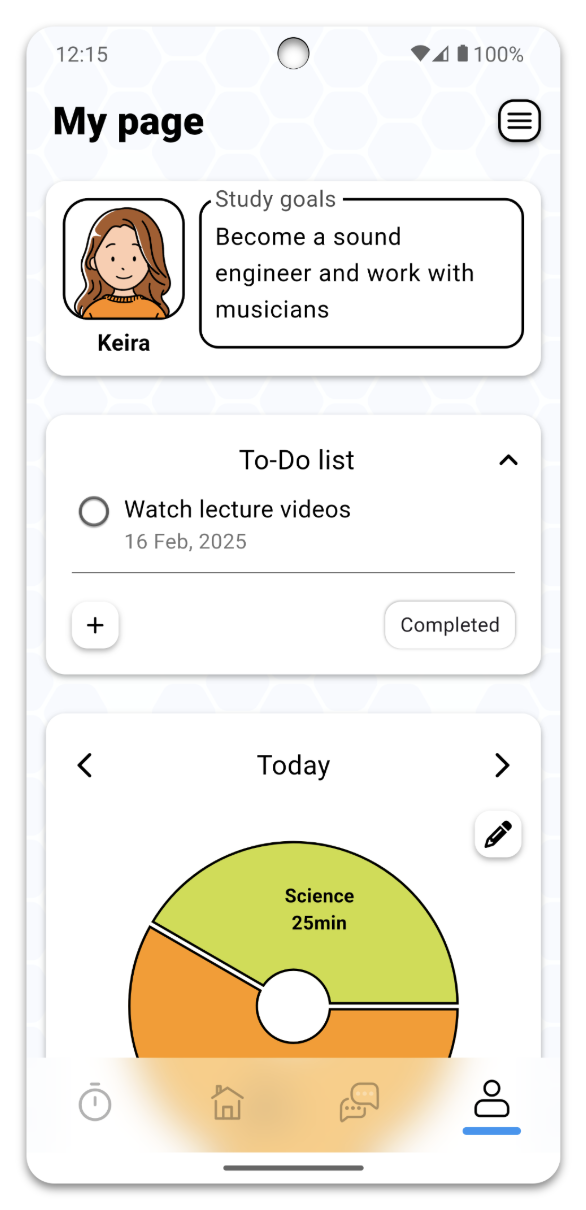
You can organize your personal information on My page.
- Setting study goals
- Add to to-do list
- Check your study history
■ If the timer end notification is not displayed
Study Circle notifies you when the timer ends. If you don’t see the notification, please check the settings by following the steps below.
For iPhone
- Open “Settings” app
- Tap “Notifications”
- Tap “Study Circle”
- Turn on “Allow Notifications”
For Android
- Long press the “Study Circle” icon and tap “App info”
- Tap “Notifications”
- Turn on “Allow Notifications”
(Important) For Android, Please also check the battery settings.
- Long press the “Study Circle” icon and tap “App info”
- Tap “App battery usage”
- Turn on “Allow background usage”
- Tap “Allow background activity” and select “Unrestricted” on the next screen
* Menu names and page configurations may vary depending on the Android model.
If you don’t know how to set it up, please contact us via the inquiry form within the app. Please also include the model name of your smartphone.
■ Temporarily pause distracting apps with Focus Mode
Study Circle offers a “Deep Study Mode” that pauses the timer when you exit the app. However, for greater control over distracting apps, we recommend utilizing the built-in Focus Mode on Android or iOS devices. Refer to the provided page for instructions on setting it up.
iOS:
https://support.apple.com/guide/iphone/set-up-a-focus-iphd6288a67f/ios
■ Language settings
To change the app language please follow the steps below.
Android 13 and above:
- Press and hold the Study Circle icon on your home screen or in the drawer.
- Open “App Info.”
- Tap “App Language.”
- Select your preferred language.
Android 12 and below:
- Go to your device settings and switch the system language.
- The app will adjust its language accordingly.
iOS:
- Open the iPhone’s “Settings” app
- Scroll to the bottom and tap “Apps”
- Scroll down to the list of installed apps and tap “Study Circle”.
- Tap Language under the “Preferred Language” section.
- Select the desired language.